Why I Left Kali for Exegol
Whether you’re running one Kali VM across multiple HTB machines, client engagements, or exam attempts — you’ve probably felt the friction. Stale tools from a bad upgrade. Shell history from three engagements ago. That one /etc/hosts entry you forgot to clean up before starting a new client. BackTrack and Kali served me well for fifteen years, but the single-box model wasn’t built for the way modern operators actually work: concurrent engagements, strict data separation, reproducible environments, and zero tolerance for “it worked on my box.”
I needed something purpose-built for operators. That’s Exegol.
In my operator workflow post, I teased that Exegol was the second most-used thing in my command history — more than git, more than Kali directly. This is the deep dive into why, and how I’ve customized it into a portable offensive operations platform.
What Is Exegol#
Exegol is a community-driven offensive security environment built on Docker. Instead of maintaining a monolithic OS, you work in purpose-built containers that come pre-loaded with curated, tested security tools.
The project has three parts:
Docker images — pre-built environments with hundreds of tools, available in curated variants:
full— the kitchen sink: AD, web, C2 frameworks, OSINT, wordlists, cracking, mobilead— Active Directory focused with networking toolsweb— web app testing with code analysisosint— open source intelligencelight— base tools plus the most commonly used packages
Even
fullis a curated subset — Exegol defines 25 package groups andfullincludes about half of them. You’re not getting bloat; you’re getting an opinionated selection that covers most engagement types.Python wrapper — a CLI (
exegol start,exegol stop,exegol remove) that makes Docker feel like managing VMs. VPN passthrough, GUI forwarding, workspace mounting — all handled transparently.my-resources — a shared volume between your host and every container for persistent customization. This is where the magic lives.
A note on licensing. Exegol was originally GPL3 but transitioned to the Exegol Software License (ESL) in June 2025 — a source-available license, not open source in the traditional sense. There are three tiers:
- Community (free) — non-commercial use only: learning, research, CTFs, academic work. You get the
freeimage, which contains the same tools asfullbut runs a few versions behind. No access to specialized images (ad,web,osint,light) or nightly builds. - Pro — for professional use: pentest engagements, bug bounty, commercial operations. Gives access to all image variants at current versions plus nightly builds.
- Enterprise — team management, multiple seats, dedicated support.
If you’re an HTB student or building skills in a home lab, the Community tier covers you — the version lag is minor and the toolset is the same. For professional work, you’ll need Pro. The founders have committed to keeping free and paid versions mostly aligned, drawing a deliberate contrast with projects that diverged significantly after commercializing.
Regardless of tier, the workflow is the same: spin up a container per engagement, tear it down when you’re done. No artifact bleed. No broken packages from a dist-upgrade that corrupted half your tooling. No “which version of impacket is installed this week.”
Why I Switched#
The breaking point wasn’t a single event — it was accumulated friction.
Engagement isolation. On Kali, every engagement shares the same filesystem, the same /etc/hosts, the same shell history. Exegol gives you a clean container per client. When the engagement ends, exegol remove and it’s gone. No residual data, no cleanup checklists, no worrying about what you left behind.
Reproducibility. Same image version = same tools, same versions, same behavior. When you’re handing off to a teammate or spinning up a second instance for parallel testing, you’re not debugging environment drift. It’s the same container.
Speed. A new Exegol container is ready in seconds. A fresh Kali VM takes minutes to boot, longer to customize. When your engagement starts in an hour and you need a clean environment, seconds matter.
Portability. I develop on macOS. I operate in Linux containers. Exegol abstracts the platform away. My dotfiles, tools, and customizations follow me everywhere through one mechanism: my-resources. I use Obsidian and other tools on my macOS host which means I get to enjoy that retina display at its best!
Trade-offs#
Exegol isn’t a silver bullet. Some things to know before you commit:
- Initial image download. The
fullimage is large — expect a multi-gigabyte pull on first install. - Docker learning curve. If you’ve never touched Docker, there’s a ramp-up. Exegol’s wrapper abstracts most of it.
- GUI tools require extra setup. Exegol supports both X11 forwarding and a browser-based desktop mode. Neither is quite the same as running Burp Suite natively on a Kali desktop, but desktop mode gets close — more on this below.
- macOS overhead. Docker on macOS runs a Linux VM under the hood (via Docker Desktop or OrbStack). There’s a small performance tax compared to running on a native Linux host, though OrbStack has narrowed this gap significantly.
my-resources: The Architecture#
This is the single most important concept in Exegol and the reason my setup works.
~/.exegol/my-resources/ on your host mounts to /opt/my-resources/ inside every container. Anything you put there persists across container lifecycles. Create a new container — your tools, configs, scripts, and customizations are already there.
Here’s what mine looks like:
~/.exegol/my-resources/
├── bin/                              # Custom scripts & tools
│   ├── pentest_workspace_setup.sh    # Engagement lifecycle manager
│   ├── [CLASSIFIED]                  # Unreleased tool — stay tuned
│   ├── first-blood                   # First-boot quick setup like setting pwd
│   └── ...
└── setup/                            # Configuration & first-boot
    ├── load_user_setup.sh            # Bootstrap script (runs once per container)
    ├── apt/
    │   └── packages.list             # APT packages to auto-install
    ├── zsh/
    │   ├── zshrc                     # 555 lines of shell config
    │   └── .p10k.zsh                 # Powerlevel10k prompt theme
    ├── claude/
    │   ├── CLAUDE.md                 # AI assistant guidelines
    │   └── commands/                 # Custom Claude Code commands
    ├── arsenal-cheats/               # 170+ cheatsheet entries
    └── ...
The directory is git-backed. Every change is tracked, versioned, and portable. Clone it on a new machine and your entire operator environment comes with it.
The container is disposable. The configuration is permanent.
The Bootstrap: load_user_setup.sh#
Exegol’s my-resources system has a hook: setup/load_user_setup.sh runs once on first container startup. This is where the container transforms from a stock Exegol image into my environment.
Here’s what mine does (abbreviated — the full script is ~200 lines):
# Modern shell tools
cargo install eza                     # ls replacement with git integration
curl -LsSf https://astral.sh/uv/install.sh | sh  # Fast Python installer

# fd-find installs as 'fdfind' on Debian — symlink to 'fd'
ln -sf "$(command -v fdfind)" "$HOME/.local/bin/fd"

# Offensive tooling via pipx (isolated installs)
pipx install git+https://github.com/BLTSEC/NOCAP.git # Command capture (my tool)
pipx install evil-winrm-py           # Windows remote management
pipx install httpie                   # HTTP client
pipx install shell-gpt               # AI shell integration
pipx install --suffix=-0924 impacket  # AD/SMB toolkit (pinned to 0.9.24)

# Prompt & theme — clone p10k repo, patch .zshrc, deploy saved config
git clone --depth=1 https://github.com/romkatv/powerlevel10k.git ...

# AI integration — install Claude Code, symlink settings & commands
curl -fsSL https://claude.ai/install.sh | bash

# <...snip...>
The result: every new container boots, runs the setup once, and I’m operating in my environment within a minute. Powerlevel10k prompt. Modern tools. NOCAP ready. Claude Code configured. Same experience, every time, every container.
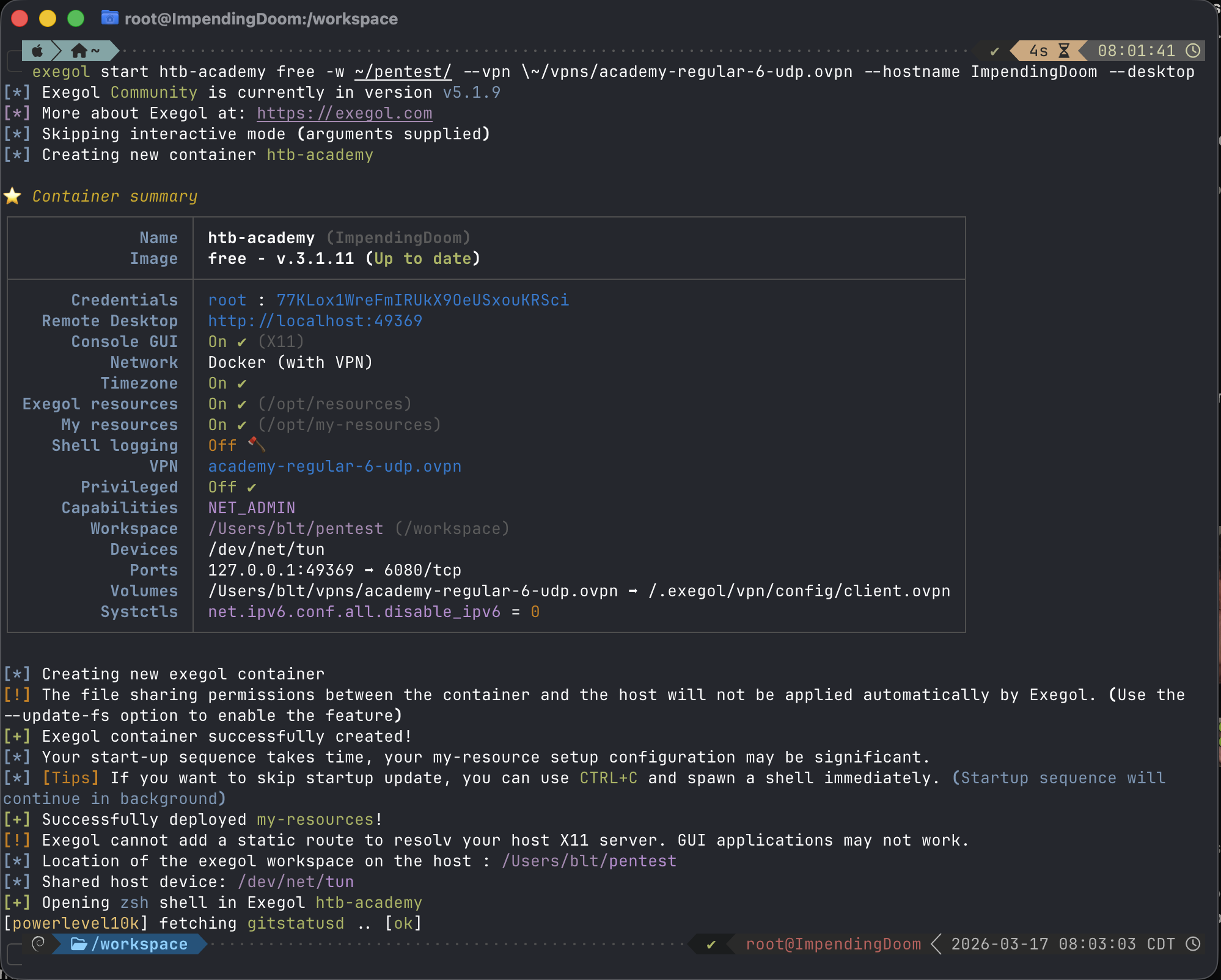 Creating an Exegol container for HTB Academy — free under the Community tier for non-commercial use
Starting an Engagement#
Here’s what an engagement actually looks like, start to finish.
Spin Up#
exegol start clientA full -w ~/engagements/clientA --vpn ~/vpn/client.ovpn
One command. Exegol creates a container from the full image, mounts the engagement directory at /workspace, establishes the VPN tunnel inside the container (host traffic unaffected), and drops me into a shell. My entire my-resources customization is already there.
Create the Workspace#
Inside the container, my pentest_workspace_setup.sh takes over:
start_op 10.10.10.5
This creates a tmux session named op_10_10_10_5 with a structured workspace:
/workspace/10.10.10.5/
├── recon/
├── exploitation/
├── loot/
├── screenshots/
├── reports/
└── logs/20260313/
    └── session_143105.log
Every pane auto-logs. File names include the window and pane names for context: recon_nmap-initial_p0_143105.log. Create a new tmux window or split a pane — logging starts automatically. No manual setup. No forgotten logging flags.
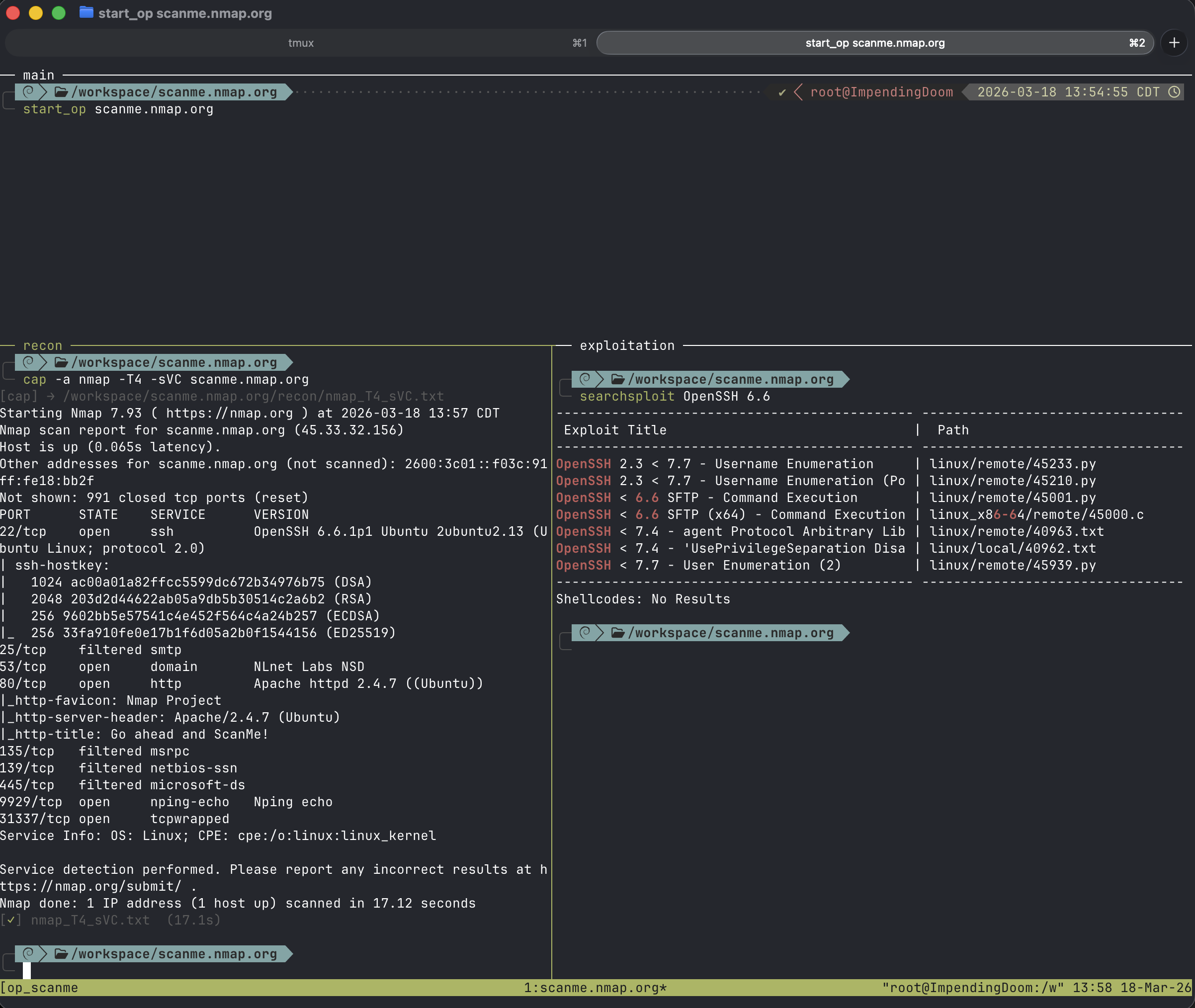 tmux session after start_op — showing the structured panes with the workspace directory visible
Operate#
Now I’m running tools with NOCAP handling output capture:
cap nmap -sCV 10.10.10.5            # → recon/nmap_sCV.txt
cap gobuster dir -u http://10.10.10.5 -w /usr/share/seclists/...
                                      # → recon/gobuster_dir.txt
cap loot secretsdump.py CORP/admin@10.10.10.5
                                      # → loot/secretsdump.txt
The $TARGET variable (set by start_op) tells NOCAP where to route. The tmux session name tells the logging system where to write. Everything is automatic. I think about the target, not the filing system.
The Staging Area#
Need to transfer tools to a compromised host? Exegol ships with exegol-resources — a ~2.4GB curated library mounted at /opt/resources:
/opt/resources/
├── windows/
│   ├── mimikatz/
│   ├── chisel.exe
│   ├── ligolo-ng/agent.exe
│   ├── SharpCollection/
│   ├── SysinternalsSuite/
│   ├── PowerSploit/
│   └── PrivescCheck/
├── linux/
│   ├── linPEAS/
│   ├── pspy
│   ├── chisel
│   └── ligolo-ng/agent
└── webshells/
One alias: staging drops me into /opt/resources. No downloading mimikatz mid-engagement. No wondering if you have the right version. It’s pre-staged, version-tracked, and updated with exegol update.
Wrap Up#
stop_op 10.10.10.5 archive
Kills the tmux session, archives everything to /workspace/archives/10.10.10.5_20260313_163045.tar.gz. When the engagement is over:
exegol stop clientA
exegol remove clientA
The container is gone. The engagement data lives in the workspace directory on the host, archived and organized. No stale containers accumulating. No artifact bleed into the next client.
GUI: X11 vs Desktop Mode#
The elephant in the room with any containerized workflow: what about GUI tools? You need Burp Suite, Firefox, BloodHound — tools that don’t run in a terminal.
Exegol handles this two ways.
X11 Forwarding (Default)#
X11 sharing is enabled automatically when you start a container. GUI apps launched inside the container display as individual windows on your host desktop. On Linux, this works natively through X11 sockets — fast, seamless, zero configuration.
On macOS, it’s a different story. X11 forwarding requires XQuartz, and XQuartz has well-documented rendering performance issues — up to 14x slower than native in some cases. If you’ve ever dragged a Burp window forwarded through XQuartz and watched it repaint like it’s 2004, you know the pain.
Desktop Mode (Browser-Based)#
This is the better option on macOS and Windows. Starting with wrapper v4.3.0, Exegol can serve a full XFCE4 desktop through your browser via noVNC:
exegol start clientA full --desktop
After startup, run exegol info clientA to get the access URL and credentials, then open it in any browser. You get a full desktop environment — taskbar, file manager, Terminator terminal — all inside a browser tab. No XQuartz, no X11 dependencies, no platform-specific headaches.
You can also use a traditional VNC client if you prefer:
exegol start clientA full --desktop-config "vnc:127.0.0.1:5900"
| X11 Forwarding | Desktop Mode | |
|---|---|---|
| Linux | Excellent — use this | Good, but unnecessary |
| macOS | Poor (XQuartz bottleneck) | Good — use this |
| Windows/WSL | Problematic | Good — use this |
| Remote/headless | Requires SSH tunneling | Just share the URL |
| Multi-window | Each app gets its own host window | All apps in one browser tab |
Desktop mode is still labeled beta, but in practice it runs well. I use it on macOS for anything GUI-heavy — Burp Suite, Firefox for web app testing, BloodHound for AD visualization. For everything else, I stay in the terminal.
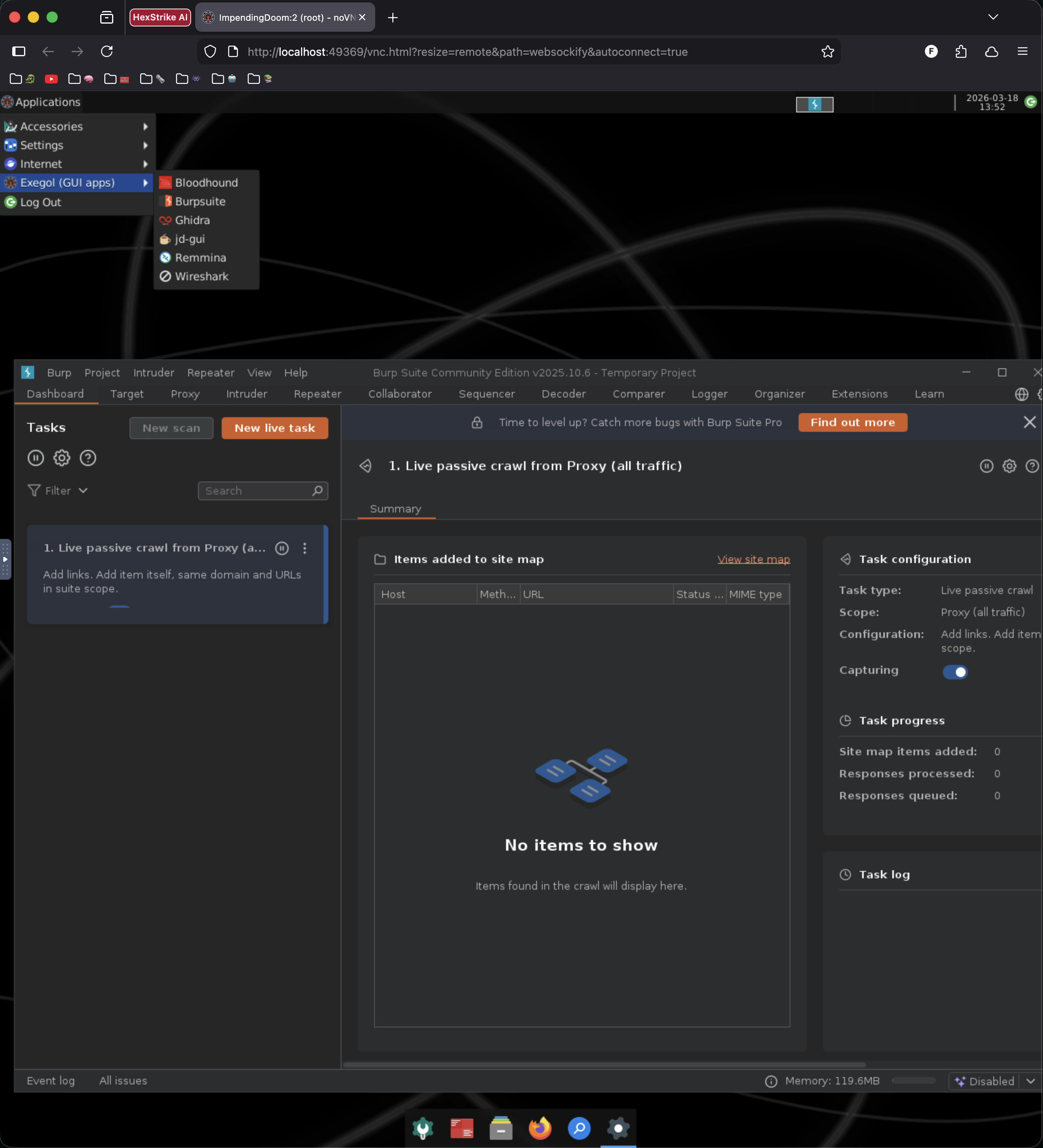 Exegol desktop mode in browser — Burp Suite running inside the XFCE desktop
AI as a Co-Pilot#
I covered Claude aliases briefly in the operator workflow post. Inside Exegol, it goes deeper.
My load_user_setup.sh installs Claude Code and deploys a full configuration: a CLAUDE.md with engagement guidelines (authorized targets only, explain reasoning, don’t ask permission for standard recon) and six custom slash commands:
| Command | Purpose |
|---|---|
/recon <ip> | Run nmap initial + full port scan + analysis |
/enumerate <target> | Web service enumeration (whatweb, nikto, gobuster) |
/assess | Begin an HTB Academy assessment or machine |
/explain | Explain the last command or technique in detail |
/note | Add a finding to the current Obsidian note |
/flag <flag> | Document captured flag + summarize attack chain |
Where AI shines is analysis, not execution. I run the scan. NOCAP captures the output. Then I pipe it to Claude to break down what the results mean, what’s interesting, and what to try next. The operator drives — the AI reads the map.
In the example below I run an nmap scan on the target and use NOCAP to write to a log file. I then use cap cat to read the last NOCAP log file and pipe it to an alias for Claude to analyze the nmap results.
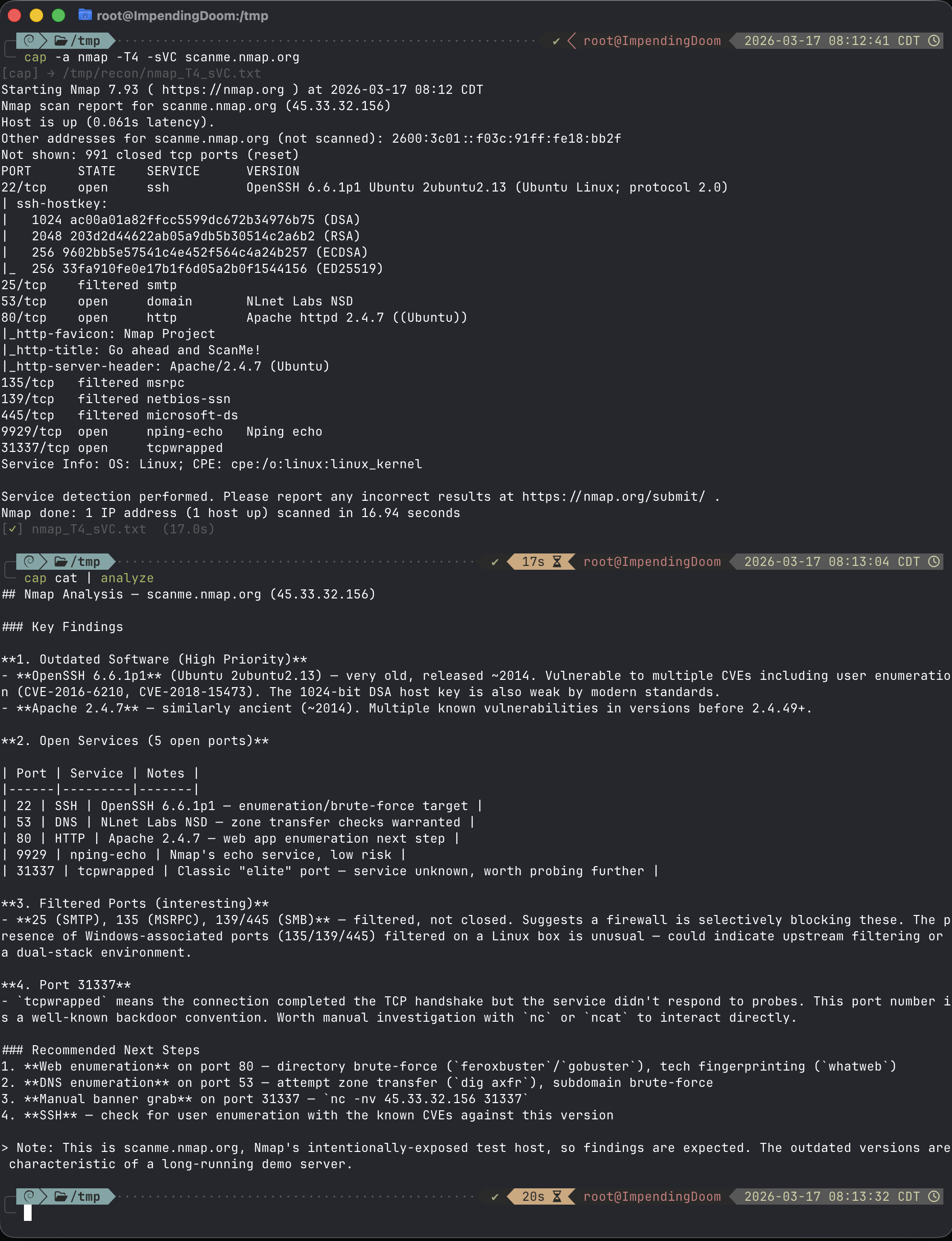 Using Claude Code to analyze nmap results
A Word on Client Data and AI#
Before we go further into AI-driven tooling, this needs to be said plainly: do not send client engagement data to cloud AI providers without explicit authorization.
When you paste target IPs, credentials, scan output, or internal hostnames into ChatGPT, Claude, or any cloud-hosted model, that data leaves your engagement perimeter and enters a third-party system. Even with enterprise-tier APIs and data processing agreements, confidential information may be retained in backend logs. This can violate NDAs, breach contractual obligations, and — depending on the client’s industry — trigger regulatory exposure under frameworks like HIPAA or DORA.
This isn’t theoretical. In 2023, Samsung engineers pasted proprietary source code and internal meeting notes into ChatGPT on multiple occasions, leading Samsung to ban employee use of generative AI and develop an in-house alternative. Legal guidance now recommends NDAs explicitly prohibit inputting confidential information into consumer-grade AI systems — with sample clause language covering “any publicly-available or consumer-grade generative artificial intelligence, large language model, or similar machine learning system.”
The Practical Answer: Local Models#
For anything touching client data, run a local model. Ollama is the most accessible option — it runs on your machine, supports hundreds of models, and as of v0.14.0 exposes an Anthropic-compatible API that tools like Claude Code can connect to:
export ANTHROPIC_AUTH_TOKEN=ollama
export ANTHROPIC_BASE_URL=http://localhost:11434
Your data never leaves your machine. A caveat: basic analysis workflows (piping scan output for breakdown) work well, but Claude Code’s tool-heavy agentic features (file editing, bash execution) have known streaming issues with Ollama that are being actively fixed. For the “pipe output, get analysis” pattern described above, it’s solid.
The capability gap is real but narrowing. Models like Qwen3, Llama 4, and DeepSeek R1 handle routine security tasks well — parsing scan output, generating boilerplate exploit code, explaining CVEs, writing report sections. For complex multi-step reasoning — chaining novel exploit paths, analyzing intricate code flows across large codebases — cloud models like Claude Opus and GPT-4 class models remain meaningfully better. Open-weight models are closing the gap fast on standard benchmarks, but for agentic tool-calling and sophisticated attack chain planning, frontier models still have an edge.
My approach: local models for all client data. Cloud models only for sanitized, generic security research questions — “how does Kerberos delegation work” not “analyze this secretsdump output from client X.” If you’re using cloud AI during an engagement, strip all identifying information first: replace real IPs with RFC 5737 documentation addresses (192.0.2.x), swap hostnames for generic labels, remove client names. And use enterprise-tier APIs with data processing agreements, never consumer chat interfaces.
The AI co-pilot workflow I described above works with either. The value is in the pattern — pipe output to an LLM for analysis — not in which specific model answers.
Exegol MCP: What AI-Driven Execution Looks Like#
Everything above is AI working inside a container — Claude Code as a co-pilot while you operate. Exegol’s MCP server takes this a step further: your AI assistant controls the containers themselves.
MCP (Model Context Protocol) is the open standard that lets AI assistants call external tools. Exegol ships an MCP server that exposes container management and in-container execution as tools any MCP-compatible client can invoke — Claude Desktop, Claude Code, Cursor, or anything else that speaks the protocol.
What It Can Do#
The MCP server exposes two categories of tools:
Orchestration — manage your Exegol environment from natural language:
| Tool | What it does |
|---|---|
list_exegol_containers | Show all containers with status |
start_container | Start existing or create new containers |
stop_container | Stop running containers |
list_installed_images | Show local images |
download_image | Pull images from the registry |
In-container execution — run offensive tools without touching a terminal:
| Tool | What it does |
|---|---|
execute_command_in_container | Run any command inside a container |
execute_remote_command | Execute on remote systems via SSH, WinRM, SMB, MSSQL, WMI |
list_installed_tools | Show available security tools by category |
list_installed_exegol_resources | Show staged resources by target OS |
Setup#
Install the MCP server alongside your existing Exegol setup:
pipx install exegol-mcp
Then add it to your AI client’s MCP configuration. For Claude Code:
{
  "exegol-mcp": {
        "command": "exegol-mcp",
        "args": [
          "--type",
          "stdio"
        ]
	}
}
The server needs Docker access (it’s managing containers), so on Linux you’ll run it with sudo. On macOS with Docker Desktop or OrbStack, standard permissions work.
The Honest Take#
MCP-driven execution is impressive to demo, but it’s not how I run most of my workflow — and I’d be doing you a disservice to pretend otherwise.
Token cost is the biggest friction. Every MCP tool call burns tokens — the tool definitions alone consume context before you’ve done anything useful. One analysis found that MCP tool manifests can eat 55,000+ tokens just from definitions, and another organization saw costs spike to $900/day from a handful of developers testing MCP-based systems. AI-for-analysis (piping scan output to Claude) is dramatically cheaper than AI-for-execution (having Claude run the scan via MCP). For most workflows, typing the command yourself is faster and cheaper.
It’s lab-grade, not engagement-grade. The Exegol project explicitly warns against using MCP with sensitive client data on cloud-hosted AI models. Container creation with custom configs and container removal aren’t fully implemented yet. This is designed for research, CTFs, and safe lab environments — not production penetration tests or red team ops. Other MCP security tools like HexStrike AI carry similar risks — within hours of its release, threat actors were discussing weaponization, and within 12 hours of Citrix NetScaler zero-day disclosures, they were using it to target those CVEs — underscoring why autonomous AI execution demands strict controls.
The industry consensus is converging. SANS instructors are framing it as “differentiate what to automate from what to augment” — AI assists, practitioners retain decision authority. Cobalt’s CTO put it bluntly when announcing their hybrid approach: “we’re not replacing pentesters with AI; we’re opening doors to a whole new level of creative liberty, accuracy and focus.” The DARPA AI Cyber Challenge demonstrated what’s possible — Trail of Bits’ Buttercup placed second with a fully autonomous LLM-powered system that found vulnerabilities, generated proofs, and applied patches without human intervention. But that was a controlled competition environment with known-good targets. In the real world, where scope boundaries matter and false positives have consequences, the sweet spot remains “AI as the operator’s copilot” — not “AI as the operator.”
Where MCP does shine: rapid lab setup, CTF speedruns where you want to stay in a single conversational interface, and learning new tools without memorizing syntax. For HTB Academy modules where I’m working through a dozen machines in a sitting, asking Claude to “spin up a container and run a full port scan on the target” is genuinely faster than context-switching between terminals.
Can you run MCP with local models? In theory, yes — MCP is a protocol, not a product, so any client that speaks it can connect regardless of the backing model. Tools like 5ire and mcp-client-for-ollama bridge Ollama to MCP servers, and the Kali Linux team demonstrated a similar setup for pentesting. In practice, tool-calling reliability drops with smaller models — a 7-8B model handles simple commands but struggles with multi-step reasoning. You’d want 70B+ parameters for anything complex, and at that point you need serious hardware.
The direction matters more than the current state. As token costs drop and the tooling matures, the line between “AI analyzes my output” and “AI runs the tool for me” will keep blurring. For now, I use both — analysis daily, MCP execution when the context is right.
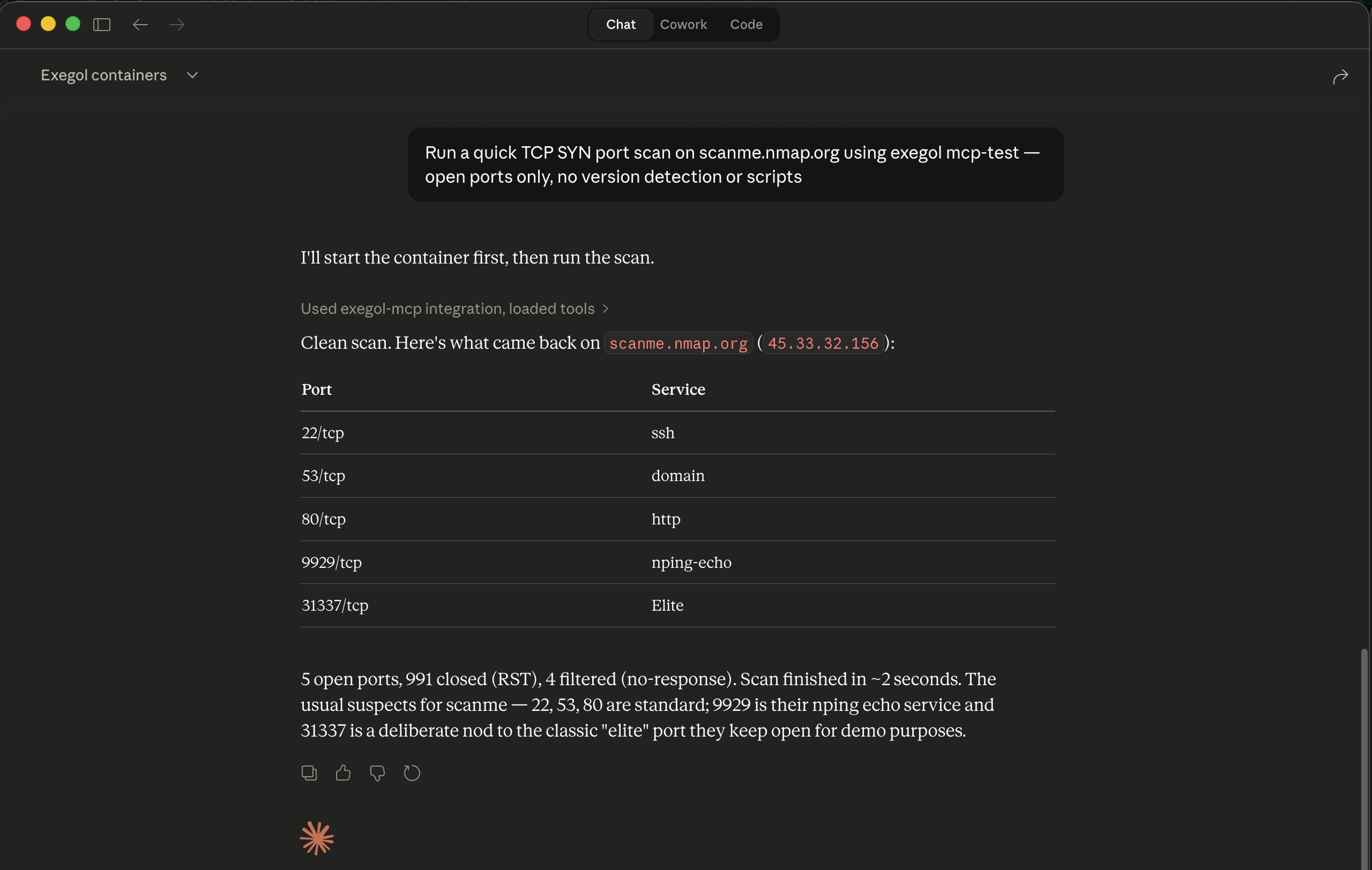 Using Exegol MCP with Claude Desktop to scan a target
Getting Started#
If you want to try this:
# Install the wrapper
pipx install exegol

# Pull an image
# Community tier: exegol install free
# Pro/Enterprise: exegol install full (or ad, web, osint, light)
exegol install free

# Start your first container
exegol start test free
You’ll land in a fully equipped security environment with hundreds of pre-installed tools. Try running a scan against scanme.nmap.org to verify everything works:
nmap -sCV scanme.nmap.org
On macOS or Windows, add --desktop for browser-based GUI access — no XQuartz needed.
From there, start customizing ~/.exegol/my-resources/:
- Add your aliases and functions to
setup/zsh/zshrc - Drop custom scripts into
bin/ - Add first-boot installs to
setup/load_user_setup.sh - Git-init the directory so your customizations are version-controlled from day one
The official docs on my-resources cover the directory structure and hooks. Start small: get your zshrc in place, add one or two pipx installs to the setup script, and build from there.
The Takeaway#
BackTrack and Kali gave me a home for fifteen years. Exegol gave me a system for building homes on demand.
The pattern is: treat your environment as code. My operating environment is ~1,200 lines of shell config, a 200-line bootstrap script, and a directory of tool configs — all version-controlled. New Exegol image? Pull it, start a fresh container, entire workflow deploys in under a minute. The image provides the tools, my-resources provides the operator.
Every engagement starts clean. Every environment is identical. Every customization is version-controlled and portable. When the engagement ends, the container disappears and nothing bleeds into the next one.
If you’re still maintaining a single Kali install across multiple clients, I’m not going to tell you it’s wrong. But there’s a better way — and once you see it, you won’t go back.
Your environment should be as deliberate as your tradecraft. Make it reproducible, make it portable, make it yours.